Moving to Android (part three): the keyboard
I've typed on an iPhone for years. I don't look at the keyboard any more. My thumbs know where every key is, where the suggestions appear and what happens when I tap one.
The day I moved to the Galaxy Z Fold8, all of that stopped working. Samsung's keyboard is a perfectly good keyboard, but it isn't the one my thumbs learned. I mistyped constantly, and everything around the keys was different too:
- The layout. Keys are slightly different sizes and in slightly different places, and the bottom row is arranged differently. A few millimetres is enough to miss a key you're not looking at.
- The emoji. A different panel, different categories and a different search.
- The suggestions. Autocomplete and spelling suggestions appear and behave differently.
- Passwords. My password manager's suggestions showed up in a different place.
Each of those is small, but together they meant I had to think about typing again. So I rebuilt the iOS keyboard for the Fold. It's called Fold Keyboard, and it has two layouts: the full keyboard I know from the iPhone on the cover screen, and a split keyboard for typing with two thumbs when the phone is open.
This is part three of the series. Part one covers the look and layout of the phone, and part two covers the fold animation.
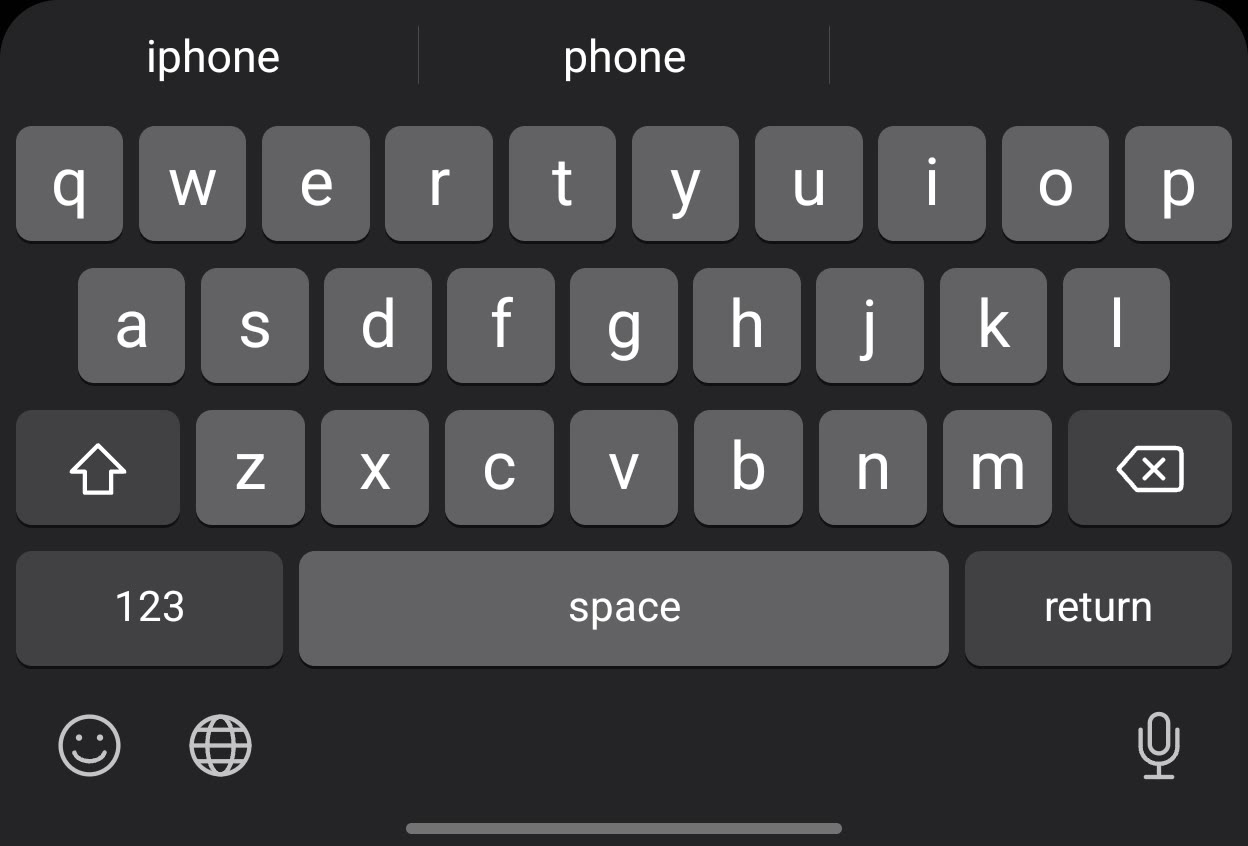
The cover screen keyboard
The cover screen is about the width of an iPhone, so the goal there was simple: make it the iPhone keyboard. That means the same rows, the same proportions and the same buttons in the same places, so my thumbs land where they expect.
The details that mattered most:
- The home row is inset by half a key on each side, so A sits between Q and W, like on an iPhone.
- Shift and delete are 1.45 keys wide, and darker than the letters.
- The bottom row is 123, space and return in the iPhone's proportions. Return changes to Search, Send, Go, Next or Done depending on the field, and turns blue when it does.
- Emoji, globe and microphone sit below the keys, not in the key rows. That's where an iPhone puts them, and it keeps the letter rows uncluttered.
- Up to three suggestions sit above the keys.
The small behaviours matter as much as the layout:
- Tap shift once for one capital, or double-tap it for caps lock.
- Hold delete and it repeats.
- Hold a letter to get its accents.
- Slide along the spacebar to move the cursor.
- Double-tap space to add a full stop.
- Each key shows a preview above your thumb as you type it.
All of these work the way they do on an iPhone, because my thumbs expect them to.
Numbers and symbols
The number and symbol pages are where I noticed the difference most on Samsung's keyboard, because punctuation is where you look down. Fold Keyboard copies the iPhone's pages key for key. 123 gives numbers on top, then - / : ; ( ) $ & @ ", then the same row of . , ? ! ' on both pages. #+= swaps in brackets, maths and currency symbols, and ABC takes you back.
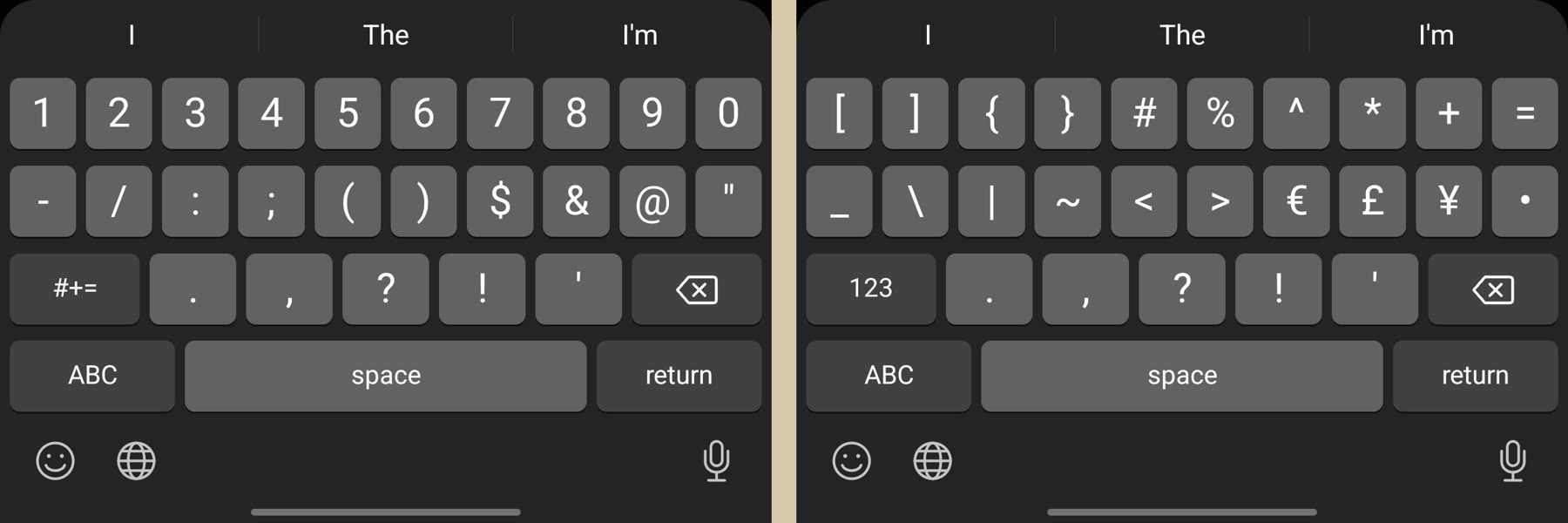
The split keyboard
Unfolded, the Fold is too wide to type on with a full keyboard. Your thumbs can't reach the middle. The iPhone Duo solves this with a split keyboard: two groups of keys, one under each thumb, with a gap in the middle. I measured mine against a reference screenshot, key by key.
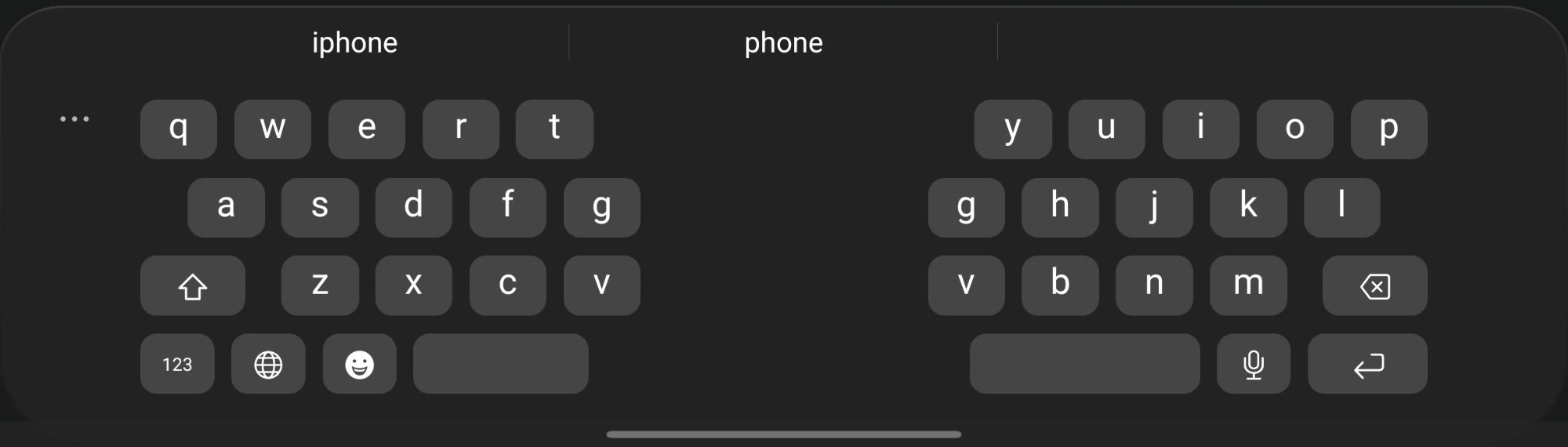
Two details make it feel right:
- The rows are staggered. On each half, the home row is offset by half a key from the row above, like a real keyboard. Without the stagger, each half becomes a grid, and a grid is surprisingly hard to type on without looking. Your thumb expects H to sit slightly left of U, and it does.
- G and V appear on both halves. Those keys sit right on the line where one thumb's territory ends and the other's begins. Depending on the word, I reach for them with either thumb, so both sides have them.
The gap in the middle is 18.3% of the screen's width by default. It's adjustable, and so is the key height, because it depends on your thumbs and how you hold the phone. Each half has its own spacebar, so either thumb can add a space. Settings sit behind the three dots at the top left.
When it splits
The keyboard switches between the two layouts on its own as you fold and unfold. It doesn't check for a particular phone model. It looks at the size of the screen. It splits only when the screen's shorter side is at least 600 dp and the keyboard has at least 600 dp of width.
Both conditions matter. Turn the cover screen sideways and it's 1028 dp wide, which is plenty for a split. But its short side is still 475 dp, so it keeps the full keyboard, which is what you want on a screen that small. If you use an app in a narrow window on the inner screen, you get the full keyboard there too. You can also force either layout in settings.
Suggestions and passwords
The strip above the keys is where the iPhone and Samsung felt most different to me, so I copied the iPhone's behaviour there too.
- While you type a word, it shows three suggestions: spelling corrections and completions. Tap one to use it. Unlike the iPhone, it never changes a word on its own, so nothing gets corrected unless you tap the suggestion.
- In a password field, word suggestions and key previews are switched off, so nothing you type appears in a suggestion or a popup. Instead, the strip shows your password manager's suggestions. I use Dashlane, and its suggestions appear right above the keys, where the iPhone puts them.
- When you search for an emoji, the strip turns into a search bar, and your search stays inside the keyboard. It never gets typed into the app you're using.
The password suggestions come through Android's own autofill system. The keyboard asks Android for them, and Android draws them using the password manager's app. The keyboard never sees the saved passwords, only a button it can show or hide.
Spelling suggestions come from Android's spell checker, which receives only the word you're typing at that moment. Email addresses, web addresses and passwords are never sent. A small built-in word list fills in if the spell checker has nothing.
Emoji
The emoji panel follows the iPhone's: a search bar at the top, emoji grouped by category, and a row of category buttons along the bottom with ABC to get back to the letters.
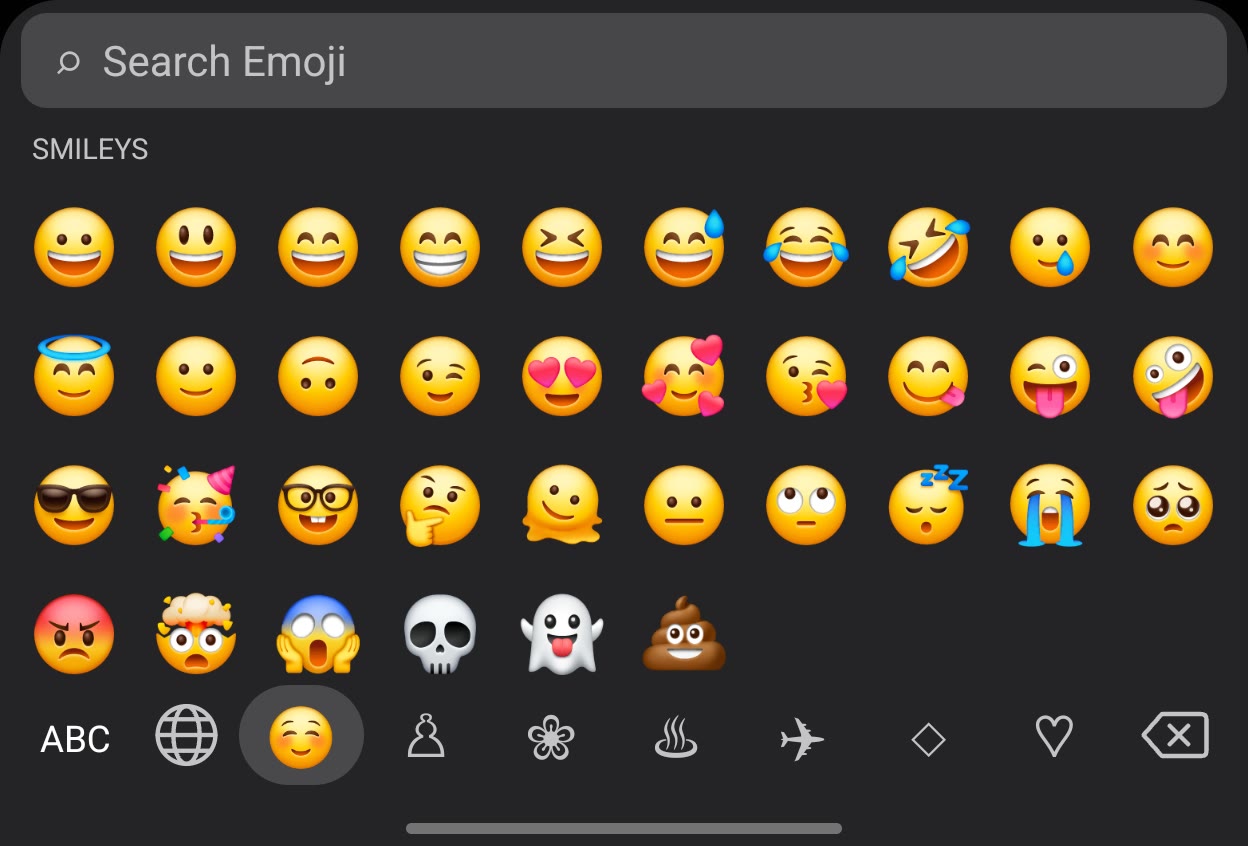
The emoji themselves are the phone's own, which on a Galaxy means Samsung's. Apple's emoji artwork isn't mine to ship, so the faces come from the phone's emoji font. The layout, categories and search are where the familiarity comes from, and that turned out to matter more than the artwork.
Privacy
A keyboard sees everything you type, so I kept this one as quiet as possible:
- It has no internet permission, so it can't send anything anywhere.
- It doesn't learn new words, keep a clipboard history or store anything you type. The only things it saves are its settings.
- The microphone button hands over to whichever voice typing app you've chosen. The keyboard never records audio itself.
What it doesn't do yet
- Automatic correction. The iPhone fixes typos as you hit space. Fold Keyboard only suggests, and you tap to accept.
- Swipe typing. You can't drag across the keys to type a word.
- Other languages. It's US English only, with an English dictionary.
- Recent emoji and skin tones. There's no recently used row, and you can't pick a skin tone.
- Apple's look, exactly. It uses Android's font and emoji, and the keys are drawn rather than copied, so it's close to the iPhone keyboard but not identical. There's no frosted blur behind the keys either.
- It isn't released. Like everything else in this series, it's a personal project for now.
None of that has mattered much in practice. The layout, the stagger and the suggestion strip were what my thumbs cared about. With those back, I've stopped thinking about typing, which was the point.